
How to Edit Text in an Image (Without the Original File)
You have a JPG of a poster, a menu, a flyer or a product shot, and one line in it is wrong. The price changed, the date moved, the name is misspelled, or a letter in the sign is broken. The designer is gone and so is the source file.
This page walks through the whole thing: preparing the image, marking the line, running the edit, and checking the result before anyone sees it. The examples come from actual runs of RetypePic, including the ones that failed.
In a hurry? Open the editor — upload, box the line, type the new text, download. Two credits per edit, refunded if the job fails. The rest of this page is what to do when that first attempt comes back wrong.
1. Decide whether the box approach is even right
RetypePic re-renders one rectangular area and copies every pixel outside it from your original file. That is a strength and a limit at the same time:
- It fits when the text sits on a plain, textured or gradient background, and the new text is the same rough length and case as the old one.
- It fights you when the text is hand-lettered, has a decorative stroke, is heavily warped by perspective on a photographed sign, or when the new line is much longer than the old one.
- Stop and go back to source when the image is a layered design you still own (Canva, Figma, PSD). Reopening the file takes two minutes and is always cleaner than any pixel edit.
If the text is on a photographed sign or shirt, read the box tightly around the letters — the model has to rebuild whatever was behind them, and a box with a lot of empty wall in it gives it more freedom to invent detail.
2. Prepare the file
Three things are worth doing before you upload:
- Work from the largest copy you have. Upscaled thumbnails give the model almost no description of the letterforms, and the re-rendered text comes back soft.
- Flatten the orientation. If the photo is rotated by EXIF, rotate and save it first, so the box you draw on screen matches the pixels in the file.
- Note the exact wording. Type the old text out before you start. You will need it in step 4, and copying it from the image by eye is where typos sneak in.
Accepted formats are JPG, PNG and WebP up to 20MB. Output is always PNG at the exact width and height of what you uploaded.
3. Box the line
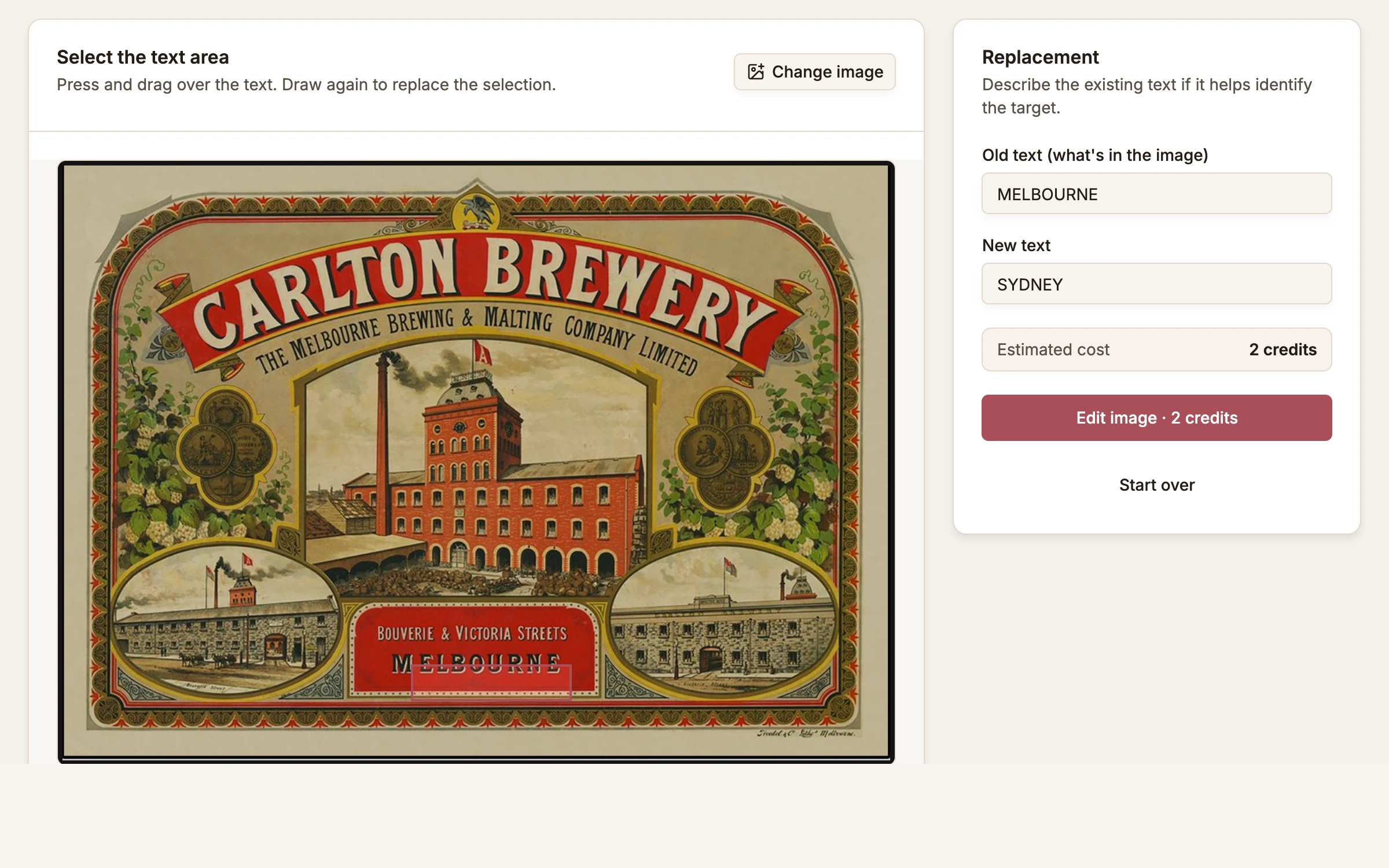
Drag a rectangle around the text you want gone. Three rules, all learned from results that had to be redone:
- Include descenders. If the line has a g, y, p, q or j, the box must reach below them. A box that clips the tails leaves fragments of the old letters behind.
- Include the full line, not the word. Replacing "MARKET" inside a sentence means the model has to re-space the sentence around a different-width word. Boxing the entire line lets it re-typeset the line as a unit.
- Leave a small margin. Two or three pixels of background on every side is enough. Adding a lot more is not "safer" — it hands the model more background to hallucinate.
The box is the contract: everything inside gets rebuilt, everything outside is copied byte-for-byte from your file, and the tool checks that on the way out.
4. Enter the old text and the new text
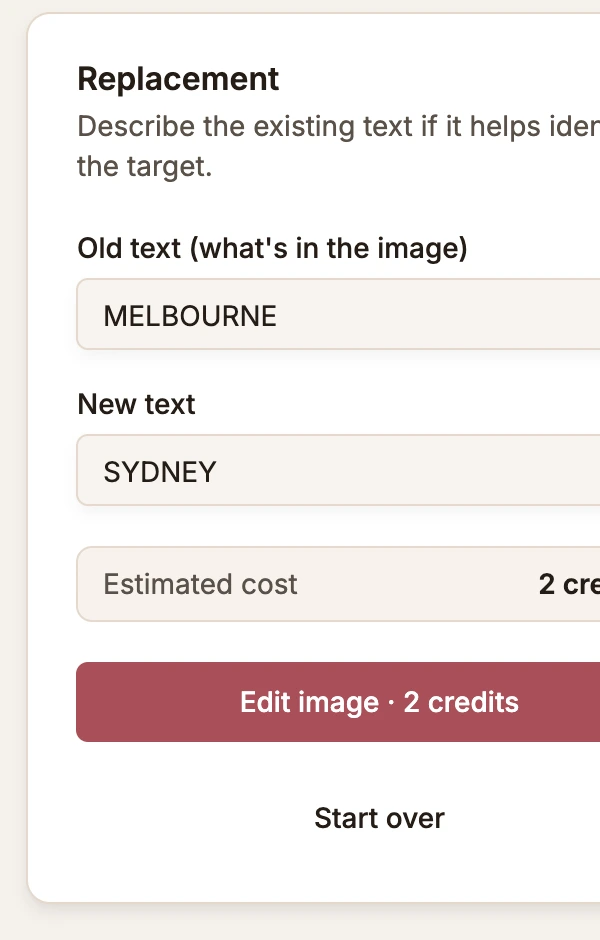
The old text tells the model what it is removing; it is not just a label. Paste it exactly, including punctuation.
Then think about the new text as a typesetter would:
| Situation | What to expect |
|---|---|
| Same character count, same case | Usually the cleanest result |
| Shorter text | Often needs a wider box, or the line ends up loose |
| Longer text | Letters get compressed; split into two lines rather than squeezing |
| Mixed case into all-caps line | Watch it — case changes weight and spacing |
The panel shows the estimated cost before you commit: 2 credits per edit.
5. Check the result properly
When the job finishes you get a slider between the original and the result, plus a download. Check in this order:
- Spelling. Read the new line character by character. Models occasionally drop a letter in long words.
- Baseline and size. The new text has to sit on the same baseline as the rest of the block, at roughly the same x-height. If it floats or is oversized, retry with a tighter box.
- The seam. Zoom to 200% at the edges of the box. A visible rectangle of different texture means the background rebuild was uneven.
- Everything outside. The tool reports a pixel difference of zero outside the box. If that number is not zero, do not use the file.
If the result is close but wrong, retry — a second run with a tighter box fixes most of these. Failed jobs are refunded; a result you simply do not like is not a failure, so the retry costs another 2 credits.
6. When it will not work, and what to do instead
This is the honest list, from results that were unusable:
- Hand-lettered display type. The model reads it as a shape rather than a font. Expect 2–3 out of 10 usable.
- Text bent by perspective on a photographed sign or van. A flat re-render cannot follow the curve.
- Very small text under about 12px in the original. There is not enough information to rebuild.
- Text over a busy photo — foliage, crowds, fabric folds. The background rebuild shows.
In those cases the correct move is to go back to the source design, or to re-photograph the sign, not to spend more credits.
Quick checklist before you upload
- Largest copy, correct orientation
- Old text typed out exactly
- Box covers the whole line, including descenders
- New text is realistic in length
- 2 credits available
Ready to try it on your own file? Open the editor. If you want the reasoning behind the guarantees — original size, untouched pixels outside the box — that is covered in the box is the whole contract.